
Free up space on your iPhone without losing the photos that matter
When your iPhone storage is full, the panic delete is tempting: dump a hundred photos and hope none of them mattered. I have watched my mom do exactly that, then call me an hour later asking where a picture went. This is the calm version instead. Here is how to free up space on your iPhone without gambling with the photos you actually care about.
Check device storage before you delete
Open Settings → General → iPhone Storage. Wait for the category totals. If apps or downloads use most of the space, photo cleanup may not solve the problem.
For iCloud Photos, open Settings → your name → iCloud → Photos. With Sync this iPhone enabled, choose Optimize iPhone Storage. This can reduce local storage while full-resolution originals remain in iCloud. It requires enough iCloud space and does not remove unwanted photos from the library.
Keep recovery separate from your backup
iCloud Photos syncs deletions too. Keep a separate copy of irreplaceable files before cleanup. Recently Deleted provides a limited recovery window, not a permanent backup. If you erase an item there, recovery through Photos ends. Read the recovery guide before you empty it.
Start with the clutter you will not miss
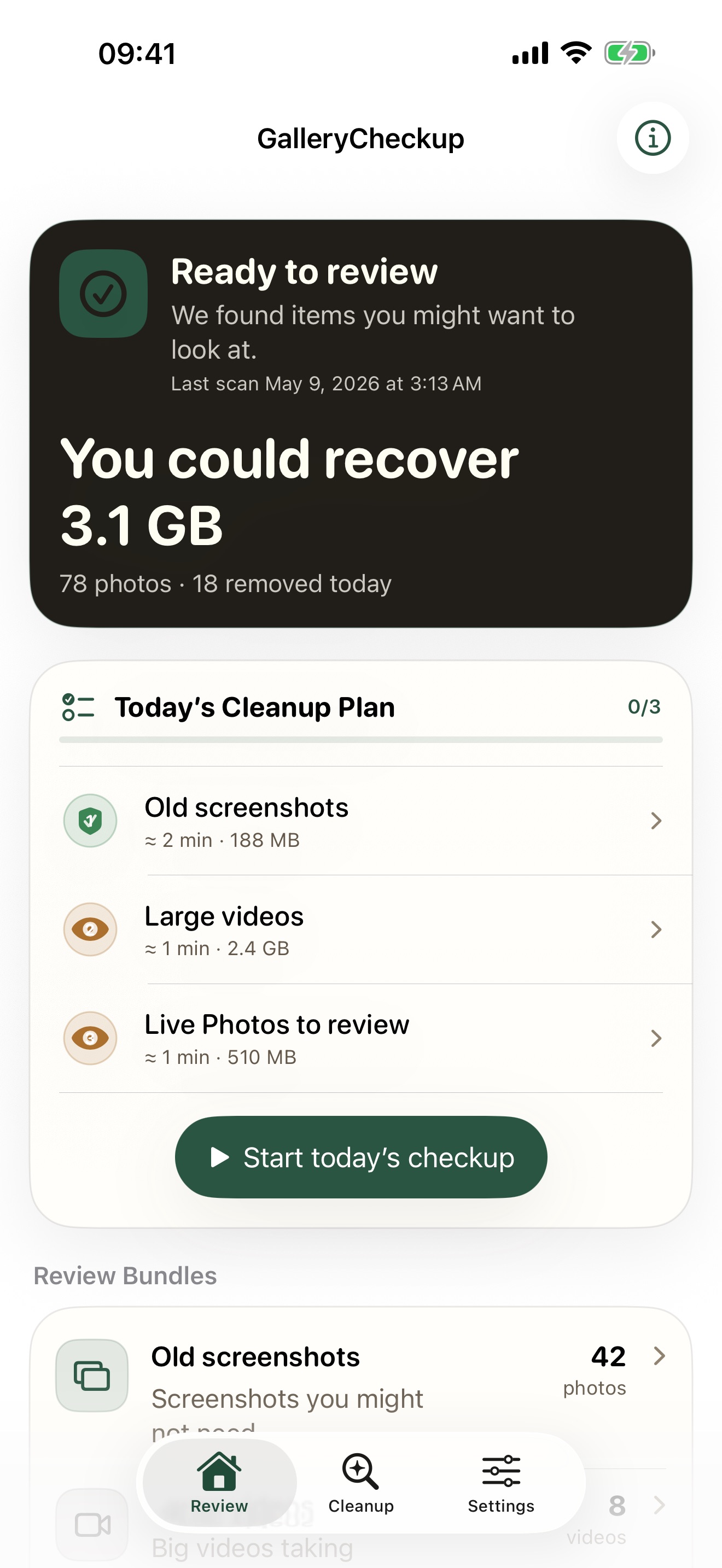
Not every photo carries the same weight. Screenshots, blurry shots, and duplicates are almost free to delete. Long videos are where the megabytes actually hide. Sentimental photos are the ones worth slowing down for.
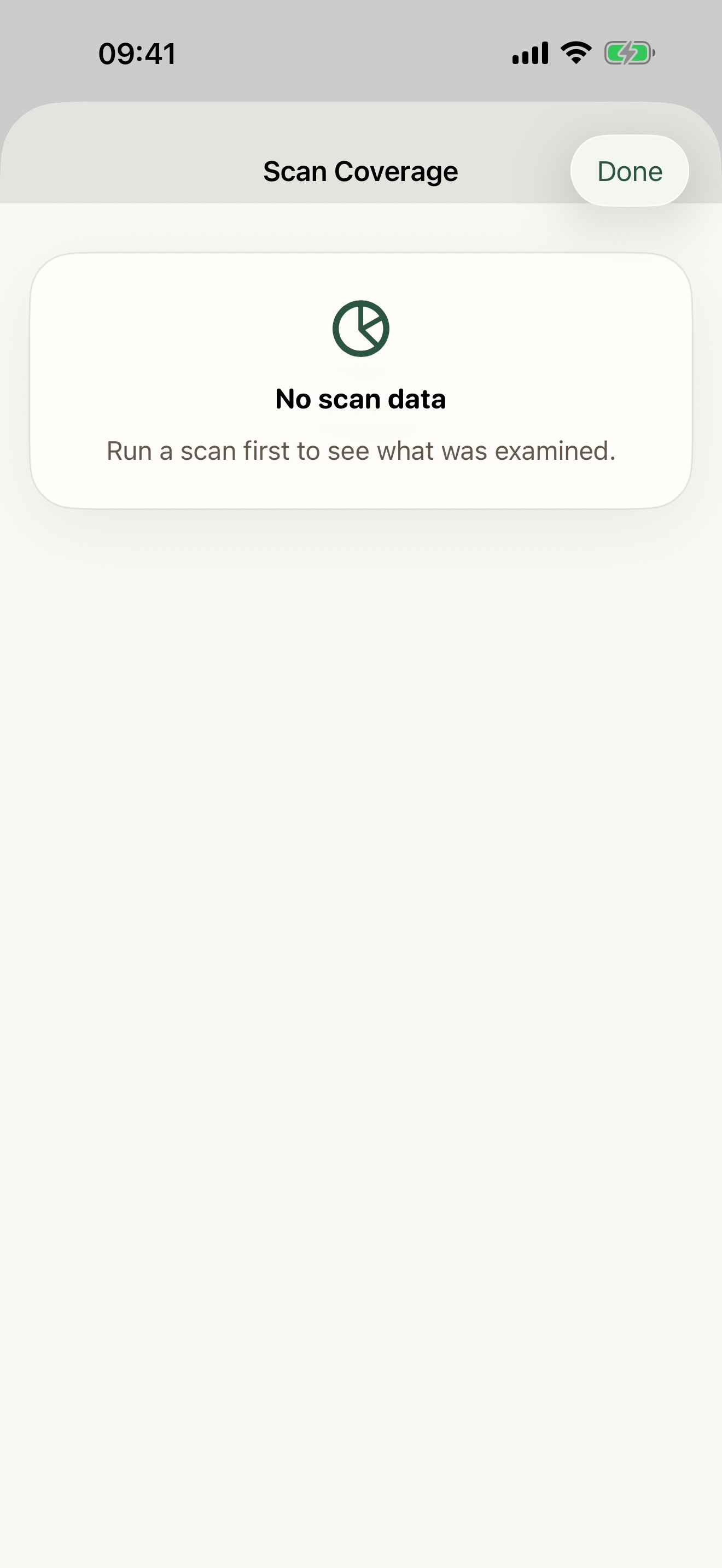
Gallery Checkup scans your library on the device and sorts it into bundles by exactly that logic, safest first. The scan coverage screen shows what it looked at and what it skipped, so there are no surprises. Nothing here leaves your iPhone.
Review one bundle at a time, not the whole library
Cleanup feels risky because you try to judge four thousand photos at once. Do not. Pick one bundle, review it one photo at a time, and keep or remove with a single tap. Favorites stay protected, and nothing is deleted until you confirm.
You can review one chosen bundle free. Check the final selection before confirmation. The space actually available depends on local files, iCloud optimization, and Recently Deleted.
Choose the next step for your library
- For old captures, follow the screenshot cleanup steps.
- For repeated images, compare duplicate and similar-photo cleanup.
- For large clips, learn to trim or compress iPhone videos.
Record the available storage before and after the cleanup. A count of selected photos is not proof of space recovered. Local copies, iCloud optimization, and Recently Deleted can affect the result.